
When your Windows 11 PC starts acting strangely with frequent crashes, blue screen errors, driver conflicts, or malware infections, it can feel frustrating and overwhelming. You may try restarting again and again, only to face the same issue. This is exactly where Safe Mode in Windows 11 becomes your most powerful troubleshooting tool. How to Boot Windows 11 in Safe Mode.
Safe Mode allows Windows to start with only the most essential drivers and services. Eliminating unnecessary background processes, it helps you identify and fix the root cause of problems quickly and safely. If you truly want control over your PC and don’t want minor issues to turn into major failures, learning how to boot Windows 11 in Safe Mode is essential.
In this guide, you’ll discover multiple reliable ways to enter Safe Mode, no matter whether your PC is working normally or stuck in a boot loop.
Contents
What Is Safe Mode in Windows 11?
Safe Mode is a diagnostic startup mode that loads Windows with a minimal set of drivers, system files, and services. It prevents third-party apps, startup programs, and non-essential drivers from running.
There are three main types of Safe Mode:
- Safe Mode – Basic system access
- Safe Mode with Networking – Includes internet and network drivers
- Safe Mode with Command Prompt – Advanced troubleshooting via command line
Using Safe Mode can help you uninstall problematic software, remove malware, roll back drivers, or fix startup issues without interference.
How to Boot Windows 11 in Safe Mode (Easy Guide)
Method 1: Boot Windows 11 into Safe Mode from Settings (Recommended)

If your system is still accessible, this is the easiest and safest method.
- Press Windows + I to open Settings
- Go to System > Recovery
- Under Advanced startup, click Restart now
- When your PC restarts, select:
- Troubleshoot
- Advanced options
- Startup Settings
- Click Restart
- After reboot, press:
- 4 for Safe Mode
- 5 for Safe Mode with Networking
- 6 for Safe Mode with Command Prompt
This method is ideal because it’s official, reliable, and requires no technical expertise.
Method 2: Use the Power Menu to Enter Safe Mode

This method is fast and convenient.
- Click the Start Menu
- Select Power
- Hold down the Shift key
- Click Restart
- Release Shift when the recovery screen appears
- Follow:
- Troubleshoot >> Advanced options >> Startup Settings >> Restart
- Choose the Safe Mode option you need
This approach works perfectly when Windows loads, but behaves unpredictably.
Method 3: Boot Windows 11 in Safe Mode Using System Configuration (msconfig)

If you frequently troubleshoot your PC, this method can save time.
- Press Windows + R
- Type
msconfigand press Enter - Open the Boot tab
- Check Safe Boot
- Select:
- Minimal (standard Safe Mode)
- Network (with internet)
- Click Apply > OK
- Restart your PC
Important Tip: Remember to disable Safe Boot later using the same steps, or Windows will continue booting in Safe Mode.
Method 4: Enter Safe Mode When Windows 11 Won’t Boot
If your PC won’t start at all, don’t panic—Windows 11 still gives you a way out.
- Power on your PC
- When Windows starts loading, force shutdown (hold the power button)
- Repeat this 2–3 times
- Windows will automatically launch Automatic Repair
- Select:
- Advanced options >> Troubleshoot >> Startup Settings >> Restart
- Choose Safe Mode
This method is extremely powerful for fixing boot loops and startup failures.
Method 5: Boot Safe Mode Using Command Prompt
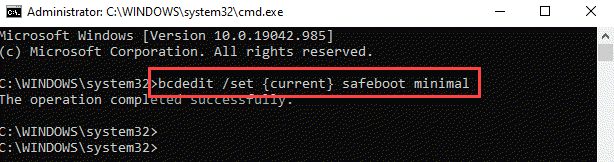
Advanced users can use this technique for quick access.
- Open Command Prompt as Administrator
- Type:
bcdedit /set {default} safeboot minimal - Restart your PC
To exit Safe Mode later, run:
bcdedit /deletevalue {default} safeboot
This method gives you full control over your system startup behavior.
Why You Should Use Safe Mode in Windows 11
Safe Mode is not just a repair option. It’s a problem-solving advantage. It allows you to:
- Remove stubborn malware
- Uninstall broken drivers
- Fix black screen or boot errors
- Diagnose software conflicts
- Restore system stability safely
Ignoring Safe Mode means risking data loss, extended downtime, or unnecessary system resets.
Conclusion
Every Windows 11 user should know how to boot into Safe Mode. It’s your first line of defense when things go wrong. Whether you’re dealing with crashes, performance issues, or startup failures, Safe Mode gives you a clean environment to fix problems confidently.
Don’t wait until your PC becomes unusable. Master Safe Mode now, and you’ll always have control over your system when it matters most.


