
When Microsoft announced Windows 11, one requirement sparked widespread frustration among PC users: TPM 2.0. Trusted Platform Module (TPM) is a security chip designed to protect sensitive data like encryption keys and credentials. While this sounds like a great addition on paper, the reality is that millions of perfectly good computers lack TPM 2.0. Install Windows 11 Without TPM 2.0. For many users, being locked out of Windows 11 simply because of missing hardware feels unnecessary and unfair.
The good news? You can install Windows 11 without TPM 2.0. If your system runs Windows 10 smoothly, chances are it can handle Windows 11 as well. By using a few simple workarounds, you can bypass Microsoft’s restrictions and enjoy all the benefits of the latest operating system without replacing your computer.
Contents
Install Windows 11 Without TPM 2.0
Why Microsoft Enforced TPM 2.0
Before diving into the solution, let’s understand the reason behind this controversial requirement. Microsoft claims TPM 2.0 enhances security by preventing firmware attacks, securing Windows Hello login, and ensuring safer encryption. While that’s true, critics argue that the restriction feels more like a hardware push than a genuine necessity.
If you’re an average user who just wants a faster, cleaner OS, this requirement becomes a needless obstacle. Your computer shouldn’t end up in the “outdated” pile simply because of a missing chip. Luckily, technology enthusiasts have found methods to bypass this restriction.
Method 1: Using Rufus to Create a TPM-Free Bootable USB
One of the easiest ways to install Windows 11 without TPM 2.0 is with Rufus, a free tool that helps create bootable drives. The latest versions of Rufus include a built-in option to remove TPM, Secure Boot, and RAM checks during installation.
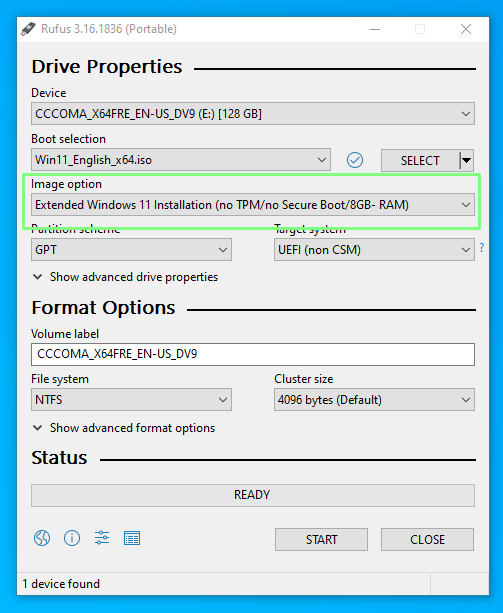
Here’s how you can do it:
- Download Rufus from its official website.
- Grab a copy of the Windows 11 ISO file from Microsoft’s site.
- Insert a USB drive (at least 8GB) and open Rufus.
- Select the Windows 11 ISO and choose your USB device.
- In the setup options, check the box that says “Remove requirement for 4GB+ RAM, Secure Boot, and TPM 2.0”.
- Click Start and wait for Rufus to create the bootable USB.
- Restart your PC, boot from the USB, and proceed with installation.
This method is fast, reliable, and works for almost any system that can already run Windows 10.
Method 2: Registry Edit During Installation
If you already have a Windows 11 installation media but your computer blocks the installation due to a missing TPM, you can edit the Windows Registry to bypass the check.

- Boot into the Windows 11 installation setup.
- When you reach the screen that warns about TPM or Secure Boot, press Shift + F10 to open Command Prompt.
- Type regedit and hit Enter to open the Registry Editor.
- Navigate to:
HKEY_LOCAL_MACHINE\SYSTEM\Setup - Right-click Setup → New → Key, and name it LabConfig.
- Inside LabConfig, create two new DWORD (32-bit) Values:
BypassTPMCheck→ Set value to 1BypassSecureBootCheck→ Set value to 1
- Close Registry Editor and continue installation.
This trick tells the installer to skip TPM and Secure Boot requirements, allowing you to move forward without issues.
Method 3: Upgrading from Windows 10 Without TPM
If you already have Windows 10 installed, you can perform a direct upgrade. This method involves replacing the install.wim or install.esd file in Windows 11 setup with the one from Windows 10 ISO. Doing so tricks the installer into thinking your system is already compliant, making the upgrade smooth.

Why You Shouldn’t Worry About TPM: Install Windows 11 Without TPM 2.0
You may wonder if skipping TPM 2.0 makes your PC less secure. The reality is that most users don’t even use TPM’s advanced features. Security software, firewalls, and responsible browsing habits already protect your system effectively. If you’re cautious online and use antivirus tools, you won’t notice any meaningful difference without TPM.
Don’t Let TPM Stop You
Microsoft’s decision to enforce TPM 2.0 leaves millions of capable PCs behind. But you don’t need to spend money on a new computer just to experience Windows 11. By following the above methods—especially the Rufus option—you can bypass the restriction and enjoy all the benefits of Windows 11, including its sleek design, better performance, and new productivity features.
Don’t let TPM 2.0 stand in your way. Your computer deserves Windows 11, and with a little effort, you can make it happen today.


